

Convert Any Website Into a Professional Android App Using Claude AI + Android Studio
Modern AI tools are changing the way developers build Android applications. Instead of spending hours manually writing Java code, XML layouts, and Android configurations, developers can now use AI tools like Claude AI to generate complete Android Studio projects in minutes.
In this professional tutorial by ALL PC GEEK, you’ll learn how to convert your website into a stylish Android application using Claude AI and Android Studio.
✔ Modern Splash Screen
✔ Stylish Dashboard UI
✔ 6 Grid Categories
✔ WebView Integration
✔ Swipe Refresh
✔ Loading Animation
✔ Back Navigation Support
✔ Premium Material Design UI
Why Use Claude AI for Android Development?
AI coding tools are becoming extremely popular because they save time and help developers generate project structures instantly.
Instead of searching Stack Overflow for hours, you can simply describe your app idea and Claude AI generates the code for you.

- Beginner Android developers
- Website owners
- YouTube creators
- Bloggers
- Freelancers
- Students learning Android Studio
Website Used in This Tutorial
https://www.allpcgeek.comYou can replace this with your own website or blog.
Requirements
- Android Studio installed
- Internet connection
- Claude AI account
- Basic computer knowledge
Step 1 – Open Claude AI
Open Claude AI in your browser. We are going to use AI to generate our Android application automatically.
Step 2 – Copy This Claude AI Prompt
Paste this professional prompt into Claude AI:
Hi Claude.

Create a complete professional Android Studio WebView application using Java.

The app should contain:

1. Modern splash screen with logo animation.
2. Dashboard activity with 6 modern grid categories.
3. Each grid item should contain icon, title, rounded card design, shadow, and smooth click animation.
4. When user clicks a category, open a WebView activity.
5. Each category should load different website URLs.
6. Add loading progress bar.
7. Add swipe refresh.
8. Add back button navigation support.
9. Use Material Design.
10. Use RecyclerView with GridLayoutManager.
11. Use CardView for modern UI.
12. Make the UI look premium and futuristic.
13. Use dark theme with green accent color.
14. Include all XML layouts.
15. Include all Java code.
16. Include AndroidManifest.xml configuration.
17. Include internet permission.
18. Add comments in code for beginners.
19. Make everything production-ready.

Package name:
com.pcgeek.webviewapp
What Claude AI Generates
- Java source files
- XML layouts
- RecyclerView adapter
- Dashboard UI
- WebView activity
- Splash screen
- AndroidManifest.xml
- Modern Material Design UI
Step 3 – Open Android Studio

Create a new Empty Activity project.
Language: Java
Minimum SDK: Android 7.0 or higher
Project Name: PCGeekWebView
Package Name: com.pcgeek.webviewapp
Step 4 – Create Project Structure
app/
 ├── java/com/pcgeek/webviewapp/
 │    ├── SplashActivity.java
 │    ├── DashboardActivity.java
 │    ├── WebViewActivity.java
 │
 ├── res/layout/
 │    ├── activity_splash.xml
 │    ├── activity_dashboard.xml
 │    ├── activity_webview.xml
 │
 └── AndroidManifest.xml
Step 5 – Add Internet Permission
<uses-permission android:name="android.permission.INTERNET"/>Step 6 – Paste XML Layout Files
Paste all XML files inside:
res/layout/Step 7 – Paste Java Files

Paste all Java files inside:
java/com/pcgeek/webviewapp/Step 8 – Add Dependencies
implementation 'androidx.recyclerview:recyclerview:1.3.2'
implementation 'androidx.cardview:cardview:1.0.0'
implementation 'com.google.android.material:material:1.11.0'
implementation 'androidx.swiperefreshlayout:swiperefreshlayout:1.1.0'
Step 9 – Run the App
Click the Run button in Android Studio.
Your professional Android app should launch successfully.
How the Final App Works
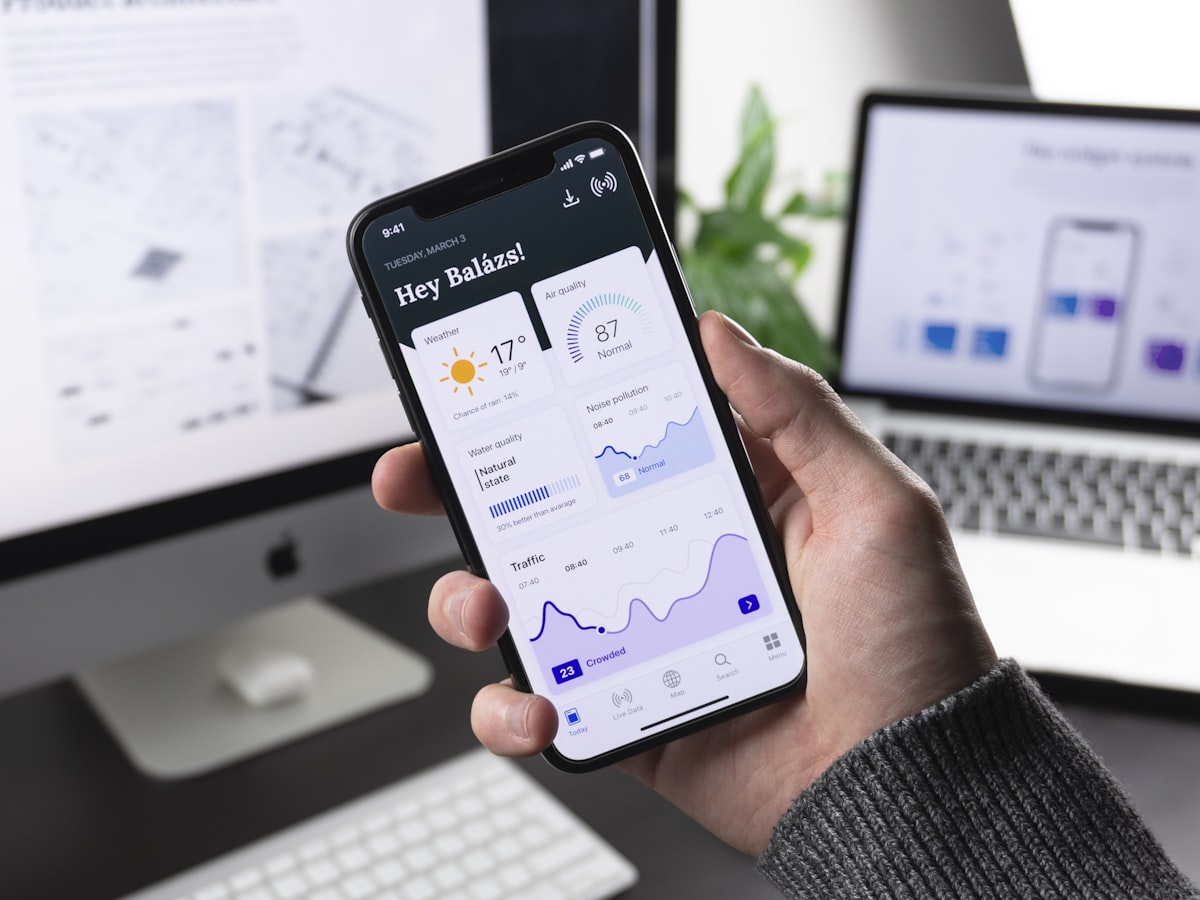
- App starts with splash screen
- Dashboard appears with six categories
- User clicks a category card
- Website opens inside WebView
- Loading animation appears
- Swipe refresh reloads the page
- Back navigation works properly
Professional Dashboard Design Tips
- Use dark mode backgrounds
- Add rounded cards
- Use clean spacing
- Add shadows
- Use smooth animations
- Use Material Design components
Recommended Colors
Background: #0F172A
Card Color: #1E293B
Accent Green: #22C55E
Text Color: White
Advanced Claude AI Prompt
Make the Android WebView app look like a premium fintech application.

Add:
- Lottie animations
- Glassmorphism cards
- Smooth transitions
- Bottom navigation
- Pull to refresh
- Dark mode
- Firebase push notifications
- Native toolbar
- Progress animation
- Offline mode
- Material You design
Why This Workflow Is Powerful

AI tools help developers generate Android app structures instantly, allowing creators to focus more on design and customization.
Frequently Asked Questions
Can beginners use Claude AI for Android apps?
Yes. Claude AI makes Android development easier for beginners.
Can I publish the app on Google Play?
Yes. After testing and customization, you can publish it.
Do I still need Android Studio?
Yes. Android Studio is required to build and run the application.
Can I add AdMob ads later?
Absolutely. You can integrate AdMob ads into your WebView app.
Start Building Your Android App Today
Use Claude AI, generate your Android Studio project, customize the UI, and turn your website into a professional Android application.
